

The best AI email management tools for small business start with what’s already in your inbox: Gemini in Gmail and Copilot in Outlook come included in most business plans. Of the paid tools, Superhuman’s $12 Email Assistant is the cheapest and Fyxer at $37 drafts best. Start free; pay only for a job you can name.
Google switched on Gemini summaries and Help me write for every Workspace user on November 10, 2026, and Superhuman launched an Email Assistant for $12 a month on November 3. Intuit’s 2026 report: 77% of US small businesses already use AI regularly. Which tool earns its money?
In this guide: seven tools priced and compared — Gemini, Copilot, Superhuman Mail, SaneBox, Shortwave, Spark, Fyxer — plus shared-inbox tools, the management-vs-marketing split, and a 1-hour triage setup.
TL;DR
- Worth it first: Gemini or Copilot — already in most business plans.
- Worth it if email eats your day: Superhuman Email Assistant, $12 a month. Fyxer AI, $37, for the best drafts and meeting notes.
- Worth it on a budget: SaneBox from $5.42 a month (annual) for sorting only. Shortwave’s free plan is the only free AI inbox here.

How we tested
I read the official product and pricing pages for all seven tools on November 16, 2026 (a few prices via independent reads of the vendors’ own pages), plus Google’s November 10 announcement and Superhuman’s November 3 launch post. I did not run card-walled trials — no inbox connected, no test email sent.
What does AI email management actually do — and what is it not?
An AI inbox tool does four jobs: sort what arrives, summarize long threads, draft replies in your voice, and resurface unanswered messages — quietly, with you keeping the send button. One thing half the guides get wrong: email management is not email marketing. Management handles mail that arrives; marketing sends campaigns to a list — Brevo, Mailchimp, and Klaviyo are marketing tools. For that side, see our AI email marketing tools for small business guide.
The 7 tools at a glance
| Tool | Works with | Cheapest paid plan | Free option | Best for |
|---|---|---|---|---|
| Gemini in Gmail | Gmail | $0 extra (Starter $7) | Summaries + drafting | No new bill |
| Copilot in Outlook | Outlook | Standard + Copilot $23.50 | Copilot Chat | Outlook teams |
| Superhuman Mail | Gmail, Outlook | Starter $25/mo annual | None for Mail | High-volume owners |
| SaneBox | Any client | Snack $5.42 annual | 7-day trial | Cheapest sorting |
| Shortwave | Gmail only | Pro $18/seat | Free plan | Gmail searchers |
| Spark Mail | Gmail, Outlook, iCloud, IMAP | Plus $8.25 annual | Free plan (no AI) | Calm inbox |
| Fyxer AI | Gmail, Outlook | Pro $37/mo annual | Free, 400 credits | Best drafts + notes |
Prices checked November 16, 2026.
Should you pay for anything? Start with the AI you already own
Before you spend a dollar, use the AI in the email you already pay for.
On Gmail, Gemini is now the default: since November 10, 2026, every Workspace account gets thread summaries and basic Help me write, on by default. The deeper Ask Gemini panel needs a paid Workspace or Google AI plan, from $4.99 a month. The catch: free Help me write is non-personalized — it won’t sound like you yet.
On Outlook, Copilot costs more: Standard with Copilot is $23.50 a user a month, Premium $32, annual billing — or the $21 add-on ($18 in year one) if you already have Microsoft 365. Gmail’s AI costs nothing extra; Outlook’s cheapest Copilot bundle adds $9.50 a seat over plain Standard.
Bluehost surveyed 350 owners this spring: only 6% highly trust AI to write in their own voice. Feed it ten of your own emails and tell it to copy how you write.
1. Gemini in Gmail — worth it, already yours
Verdict: worth it — free, on by default, the baseline everything else must beat. Gemini summarizes long threads, drafts replies from a short prompt, and on paid plans Ask Gemini answers questions across mail, calendar, and Drive. Until this month, summaries and drafting were limited to personal accounts and some Workspace editions; now they’re core Workspace on every plan including the $7 Starter. The limits: no voice learning, no auto-triage.
2. Microsoft Copilot in Outlook — worth it on Microsoft 365
Verdict: worth it on Outlook, skip it as a reason to switch. Copilot summarizes threads with one click and drafts replies in a tone you choose, and it stays inside your Microsoft tenant — good for client or legal mail. The price is the problem: $23.50 a seat buys the whole suite plus Copilot. Fine if your team lives in Outlook and Teams.
3. Superhuman Mail — worth it only if email is your job
Verdict: worth it for high-volume owners, skip it under 50 emails a day. Superhuman Mail is the fastest inbox here: Split Inbox, keyboard shortcuts, snippets, and an AI layer that triages, summarizes, and drafts. They claim twice-as-fast email and 4+ hours saved a week — their numbers, not mine. Starter is $25 a month annual, Business $33 with Auto Drafts and Ask AI. No free plan, and you still pay Google or Microsoft for the mailbox.
The cheaper twist — Superhuman Email Assistant, launched November 3, 2026. It lives inside the Gmail or Outlook you already use: it labels mail, drafts replies, archives noise, and brings back unanswered threads. It learns your voice, never deletes anything, and never sends without approval. At $12 a member a month annual ($15 monthly), it’s less than half the Mail app’s price. One caveat: it launched two weeks ago — no independent reviews yet.

4. SaneBox — worth it if you only need sorting
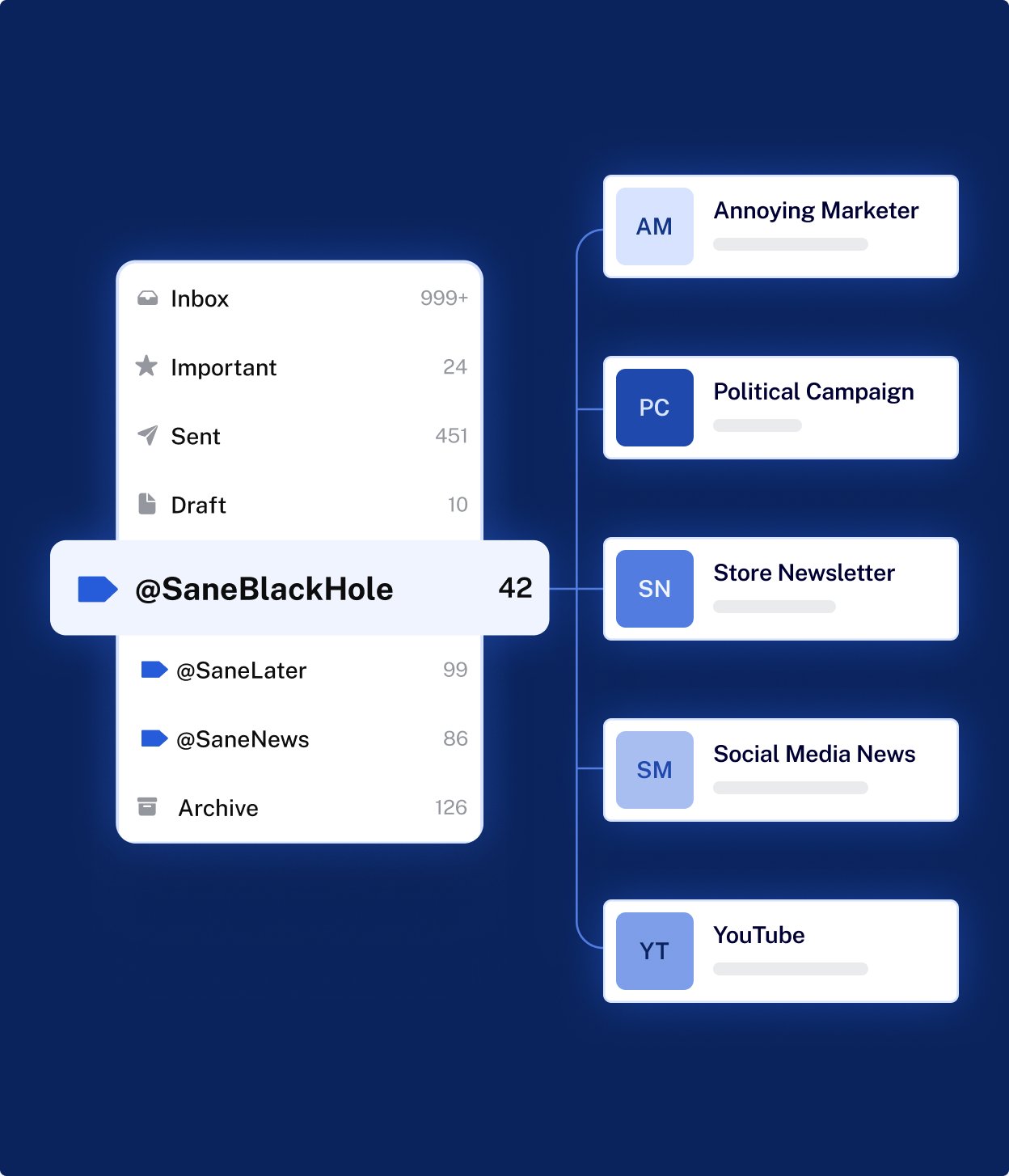
Verdict: worth it for triage on a budget, skip it if you want drafts. SaneBox is the oldest tool here and the simplest: it works server-side with any client, learns which senders you engage with, and files the rest into folders — SaneLater for the maybe-pile, SaneBlackHole for senders you never want to hear from — plus a daily digest. It filters on headers, not message bodies, and never stores your emails. Snack is $5.42 a month on the annual plan; Lunch $9.08; Dinner $26.58. 7-day trial. SaneBox sorts; it never writes.
5. Shortwave — worth it for Gmail searchers
Verdict: worth it if you live in Gmail, skip it on Outlook. Shortwave is an AI-native Gmail client with the smartest search here: ask a question in plain English and it reads your mail and attachments. It bundles newsletters, turns emails into to-dos, and autocompletes replies in your voice. The free plan is real but tight: basic AI, 90-day search history, 15 threads per search, and a “Sent with Shortwave” signature. Pro is $18 a seat a month; Business is $30. Two hard limits: Gmail only, and every paid tier went up in mid-2026.

6. Spark Mail — worth it as a calmer inbox
Verdict: worth it for the free Smart Inbox, skip the paid plan. Spark is the calmest app here. The free plan gives you a Smart Inbox that separates real people from newsletters, unlimited accounts, snooze, templates, and a calendar — for $0, across Mac, Windows, iOS, and Android. Spark +AI — drafting, summaries, quick replies — lives on Plus at $10 a month ($8.25 annual) and Pro at $20 ($16.58 annual), which adds Autopilot rules and Auto-Drafts. +AI is disabled by default, and Spark says your mail is never used to train models. If drafting is the job, Fyxer and Superhuman’s Assistant do it better.

7. Fyxer AI — worth it for the best drafts, watch the meter
Verdict: worth it for drafts that sound like you — watch the credit meter. Fyxer sits inside Gmail or Outlook, learns how you write, sorts your inbox into “to respond / FYI / marketing,” drafts replies in your tone, and takes meeting notes — but never sends anything itself. The price changed this autumn: Fyxer moved to credit-metered pricing. The free plan gives 400 credits a month — chat and audio meeting notes, but no drafting or sorting. Pro is $37 a month annual ($49 monthly) with 3,000 credits; Team is $64 ($99) with 6,000 pooled. Sorting costs 0.2 credits per email, a meeting minute 1, a chat message 20. The first three months are unlimited, hiding real usage. A 100-email-a-day inbox burns about 600 credits a month on sorting — fine inside Pro’s 3,000.

When your inbox becomes a team job
The moment two or three people answer the same address — support@, sales@, info@ — you have an ownership problem: who replied, and did two people answer the same customer?
That’s when you move to a shared inbox. Missive is the cheaper step: Starter is $14 a user a month annual (up to 5 users); Productive is $24 (up to 50) and adds the AI assistant, rules, and API. Front is the heavier option: Starter $25 a seat a month (up to 10 seats, one channel type), Professional $65, Enterprise $105, with Copilot AI as a roughly $20 add-on. Watch the seat caps: the 11th person moves the whole team from $25 to $65 a seat.
Which tool fits your business?
- Solo owner, Gmail, under 50 a day: Gemini, free. Shortwave free for smarter search.
- Solo owner, Outlook: Copilot if your plan bundles it; otherwise Copilot Chat is free.
- Drowning in email, 100+ a day: Superhuman Email Assistant, $12. Fyxer, $37, for meeting notes too.
- Tight budget, just want sorting: SaneBox Snack, $5.42 a month annual. No drafting.
- Gmail power user who searches constantly: Shortwave Pro, $18.
- Many accounts, one calm inbox: Spark free. Pay for Plus only for AI drafting.
- Two to ten people, one shared support@: Missive Productive, $24 a user. Front for a measured operation.
The 1-hour triage setup (do this today)
- Write your three buckets on paper (10 minutes). 1: AI drafts it, you send it — scheduling, hours, quotes. 2: AI summarizes it, you write — price talks, unhappy customers. 3: AI never touches it — legal, hiring, private information.
- Turn on the built-in AI (10 minutes). In Gmail, open a long thread, click the summary chip, then reply with Help me write. In Outlook, click “Summary by Copilot.”
- Teach it your voice (20 minutes). Paste ten emails you wrote into ChatGPT or Claude and tell it to copy your voice.
- Set two email blocks (5 minutes). Twenty minutes in the morning, ten in the afternoon. Notifications off outside them.
- Set the guardrails (5 minutes). Never turn on auto-send. Read drafts for tone, not facts. Don’t paste account numbers or client details into other tools.
- Run it a week, then buy. If a bottleneck is still there, you’ll know which job to pay for.

Frequently asked questions
Is it safe to let AI read my email?
Yes, on a business plan — business-plan content stays out of model training by default. Decide in advance which emails never go near an AI tool.
Will AI send something wrong to a customer?
It can — which is why AI drafts and you send. Every tool here keeps you on the send button. Never turn on auto-send.
How much does AI email management cost?
From $0 to about $37 a month for one person. Built-ins cost nothing extra. Email Assistant is $12, Shortwave Pro $18, Fyxer Pro $37, SaneBox from $5.42 a month annual. Start at $0 and pay only for a job you can name.
What’s the difference between email management and email marketing tools?
Management handles mail that arrives — sorting, summarizing, drafting replies. Marketing sends campaigns to a list: Mailchimp, Brevo, and Klaviyo are marketing tools. For that side, see our AI email marketing tools for small business guide.
The bottom line
Email isn’t a tool problem — it’s a decision problem. Decide what the AI may touch, turn on the free AI in your inbox, run it a week, then pay for the one job that’s still slow.
If you buy one thing, make it the $12 Superhuman Email Assistant — full drafts waiting in your inbox. For the best drafts and meeting notes, Fyxer at $37 is the pick. If your budget is zero, Gemini is already on for every Workspace user.
For the wider stack, see our best AI productivity tools for small business guide, plus our AI appointment scheduling and AI workflow automation guides. Our approach is on the About page.
Enjoying ToolsBizAI guides?
Add us as a Preferred Source on Google — you'll see our latest tools and guides first in Search, Top Stories, and AI Overviews.
Get One Useful AI Tool Tip Every Week
One practical AI tool tip in your inbox every week. No spam, unsubscribe anytime.

We’re the team behind ToolsBizAI. We hands-on test AI tools for small businesses — signing up for free plans, taking real screenshots, and fact-checking every claim before publishing. Our guides cover marketing, customer support, and day-to-day operations.